You open a Jira issue to record time and the Log work control is gone. Jira Cloud keeps time tracking enabled, so a hidden control has a documented cause. This checklist works through four checks: the Time tracking field, the Work On Work Items permission, the time tracking provider, and the number you typed.
Entries that fail to appear after saving are a different problem. A saved worklog lives in the Work log tab in the issue activity, and its disappearance has separate causes. This article is about the missing control.
Find the Time tracking field
Jira shows time tracking in the details panel of a work item. It shows the time logged so far and the time remaining (Log time on a work item). The Log work action lives in the same place. Atlassian's advice is direct: if you do not see the time tracking field in your space, contact your Jira admin.
The fix depends on the space type. In a company-managed space, the admin shows or hides the Time tracking field in the field configuration. In a team-managed space, the admin adds the field to each work type (Configure time tracking). Time tracking itself is always enabled in Jira Cloud, so nobody needs to switch a feature on.
Check the permission
Logging work needs the Work On Work Items permission in the space. An admin grants it through Settings, then Work items, then Permission schemes. Open the scheme's Permissions, find the Time tracking permissions section, and edit the Work On Work Items entry (Configure time tracking).
Edit and delete permissions are separate decisions. Edit own work logs and Edit all work logs control changes to existing entries, and the Delete permissions work the same way (Time tracking permissions). A person who can log work does not automatically hold the rights to correct it later.
Check the time tracking provider
A Marketplace app can take over Jira's default time tracking features. The admin picks the app in Settings, then Work items, then Time Tracking, in the Time tracking provider dropdown (Configure time tracking). When an app is the provider, its own panel replaces the default Log work dialog, so the missing dialog is expected behavior.
In Daylight you log from the Daylight panel on the issue. It offers a timer with Start timer and Stop & log, plus quick-log buttons for 15m, 30m, 1h, and 2h. Both methods create native Jira worklogs under your account (Log time in Daylight).
Check the number
Durations accept weeks (w), days (d), hours (h), and minutes (m). A number without a unit takes the default unit the admin set (Log time on a work item, Configure time tracking). That default can be a minute, hour, day, or week. A plain 2 can mean 2 minutes on one site and 2 days on another. Write the unit, and the value survives a settings change.
The decision tree
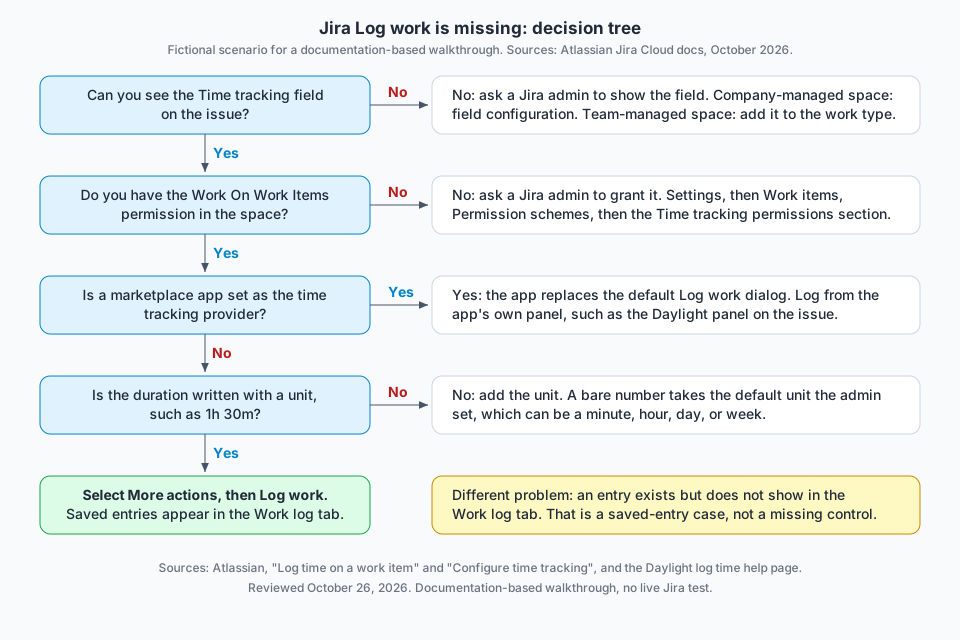
The tree puts the four checks in order. Each No branch names the fix, and the Yes branches lead down to the working Log work action. One side note covers the saved-entry case so it does not get confused with the missing control.
The checklist
- Open the issue and look for the Time tracking field in the details panel.
- If the field is missing, ask the admin to show it in the field configuration or work type.
- Ask the admin to check Work On Work Items for your role in the space's permission scheme.
- Ask the admin which app the Time tracking provider dropdown selects.
- Write durations with a unit, such as
2h, so the site default does not change the value.
Where Daylight fits
When Daylight is the provider, the Daylight panel is the entry point, and the default Log work dialog is not the way in. Entries saved through the panel appear in Jira's worklog system, feed Daylight reports, and remain if the app is later uninstalled (Log time in Daylight). The panel also carries internal categories for time that is not on an issue.
This checklist uses Atlassian's published documentation and Daylight's help pages, reviewed on October 26, 2026. It does not report a live Jira test or a customer result.
Read the time-entry instructions to see the timer, quick log, and automatic suggestions in one place.