Jira keeps the plan and the record in different fields. The original estimate holds the plan. Time spent holds the record of logged work. Jira shows a remaining value beside them in the time tracking panel. A reader who treats the record as the plan misreads the report.
What each field holds
The original estimate holds the duration you expect before work starts (Log time on a work item). The field in use depends on the space's estimation method. The choices include Original estimate, Work item count, and custom methods. Software spaces can also use story points (Log time on a work item).
Time spent is different. It grows only after someone logs work against the issue. The time tracking panel shows the time logged so far and the time remaining (Log time on a work item). Jira calculates the remaining value from the estimates and the logged entries.
You write both values in weeks, days, hours, and minutes, as in 2d or 1h 30m. A number without a unit takes the admin's default unit. The admin's Time display format setting also controls how the Time Spent field shows values (Pretty, Days, or Hours) (Configure time tracking).
Log work on an issue
- Open the work item and select More actions, then Log work.
- Or select the Time tracking field in the details panel.
- Fill in the Log time fields, then select Save.
You need the Edit own work logs permission to change an entry later (Log time on a work item).
Correct a logged entry
Plans change and first guesses miss. You log 6h, and the task takes 8h. That correction is normal. Jira treats edits and deletes in two different ways:
- Edit: Change the entry and save. The remaining value does not move on its own. If you want the remaining value to follow, set it yourself in the Edit work log modal (Log time on a work item).
- Delete: You can let Jira add the deleted time back to the remaining estimate. Or you can set a new value by hand (Log time on a work item).
Atlassian's time tracking report compares the original and current estimates for the work items in a space (Log time on a work item). Use it to see the whole space, not one issue.
One issue, before and after
The example below follows one issue through three moments. The issue, people, and hours are fictional. This example site uses 1d = 8h.
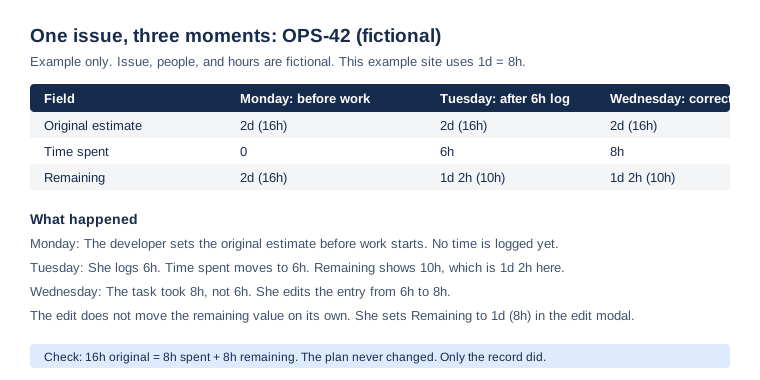
The numbers check out. A 16h plan minus 6h logged leaves 10h, which reads as 1d 2h. After the correction the record holds 8h. The remaining field keeps its 10h until the developer sets 8h. Then 8h spent and 8h remaining match the unchanged 16h plan again.
Where Daylight fits
Daylight creates native Jira worklogs under your account, so its entries land in the same Time spent total (Log time in Daylight). The timesheet grid accepts durations such as 1h 30m and 45m, and you can edit an entry's duration or note later (Log time in Daylight). The estimate fields stay in Jira's control. Set the original estimate in Jira, then log the actual work in Daylight.
This article uses Atlassian's published documentation and Daylight's help page, reviewed on October 28, 2026. It describes documentation behavior, not a live Jira test or a customer result.
Read the time-entry instructions to see timers, quick log, and durations in one place.