Jira reads every duration you type as a mix of weeks, days, hours, and minutes. The meaning of the day and week letters comes from the site's settings, and an admin controls those settings. One Jira site can treat 1d as 8 hours while a neighboring site treats it as 6.
The four units
Enter time in weeks (w), days (d), hours (h), and minutes (m). You can combine the units, as in 3w or 2d 4h 30m (Log time on a work item).
A number without a unit is the risky case. Jira applies the site's default unit to a logged value that carries no letter (Log time on a work item). The admin picks that default unit from Minute, Hour, Day, or Week (Configure time tracking). A plain 2 can mean 2 minutes on one site and 2 days on another.
Where the day value comes from
The admin opens Settings, then Work items, then Time Tracking, and selects Edit global settings (Configure time tracking). Two fields define the calendar of work:
- Working hours per day sets the meaning of
1d. The field accepts decimal values. - Working days per week sets the meaning of
1w. It also accepts decimal values.
Atlassian's documentation describes the fields but does not publish a default number for either one (Configure time tracking). Do not copy an 8-hour day from an example. Read the values on the site in front of you.
The conversion table
The table below converts common entries under two example configurations. Both configurations are fictional examples, not Jira defaults. Site A uses a 1d = 8h, 1w = 5d setup. Site B uses 1d = 6h with the same 5-day week.
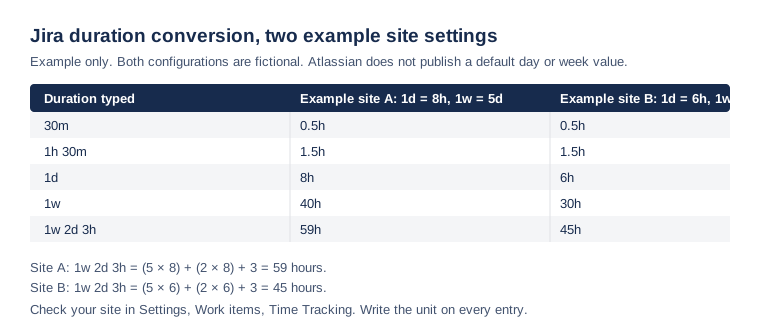
1w 2d 3h totals 59 hours on site A and 45 hours on site B. Each day and each week expands differently on the two sites. The hour and minute rows stay the same, because h and m have fixed meanings.
Check the site in four steps
- Open Settings, then Work items, then Time Tracking, and select Edit global settings.
- Read Working hours per day and Working days per week.
- Read the Default unit field.
- Write the unit on every entry, as in
2h, so a default cannot change the value.
Where Daylight fits
Daylight's timesheet grid accepts 1h 30m, 45m, and 1.5h (Log time in Daylight). Its documented formats use hours and minutes, so you write small values the same way on any Jira site. Both the timer and the quick-log buttons create native Jira worklogs under your account (Log time in Daylight). The quick-log buttons take 15m, 30m, 1h, and 2h.
This article uses Atlassian's published documentation and Daylight's help page, reviewed on October 27, 2026. It does not report a live Jira test or a customer result.
Read the time-entry instructions to see timers, quick log, and durations in one place.