You assign Jira timesheet approvers by team in Daylight under Settings → Features. A team approver sees only the timesheet submissions of their team's members. Without team scoping, an approver works across the whole organization.
The reports and approvals help documents how admins add approvers and teams. The security page states which submissions each approver can see.
Pick the scope that fits your team
Daylight gives you two ways to assign approvers. The right scope depends on how your organization is set up.
Organization-wide, no teams. In Settings → Features → Approvals, add approvers under Approvers. These approvers act as global approvers. Each one sees every submission in the organization.
Separate teams. In Settings → Features → Approvals, assign members and approvers under Teams. A team approver sees only the members of their teams.
Only Jira site admins can change approver and team assignments.
Which submissions each approver can see
Daylight resolves an approver's scope from the teams they approve. Three rules govern the result.
A team approver sees the submissions of each member in any team they approve. If a person is in two teams, the approvers of either team see them. A person in no team is visible only to global approvers and Jira admins.
A global approver and any Jira admin see every submission. A team lead who is not a Jira admin sees only their own teams. If you delegate the team, that lead can edit its members.
The two-team access example
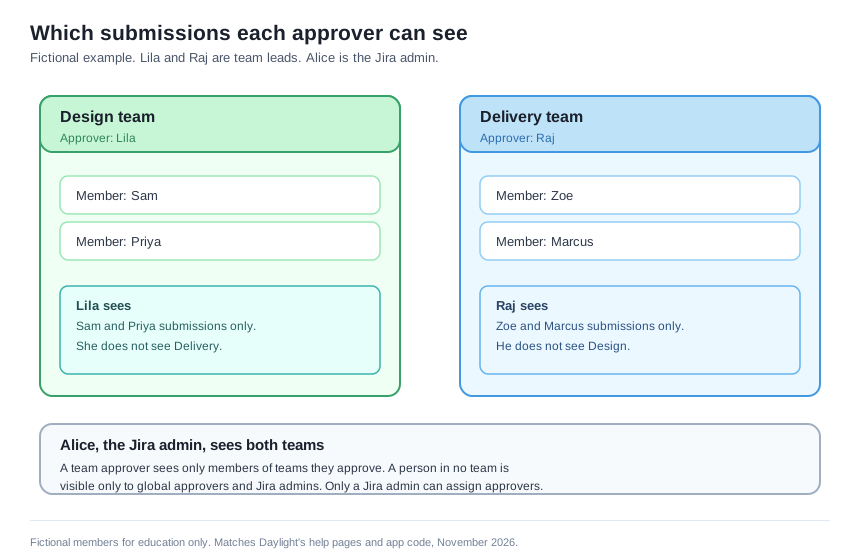
The example diagram shows two fictional teams and the scope of each approver. Lila approves the Design team. Raj approves the Delivery team. The Jira admin sees both teams.
Download the scope diagram (SVG).
Lila sees the submissions of Sam and Priya. She does not see the submissions of Zoe or Marcus. Raj sees the opposite set. The admin sees all four people.
Every name and team in the diagram is fictional. The roles and the rules they show match the documented behavior.
Assign approvers in Settings
- In Settings → Features, enable Approvals.
- Under Submission cadence, select Weekly or Monthly.
- Select Approvers, then add each approver.
- Select Teams. Create a team, then assign its members and approvers.
- To delegate a team, allow its approvers to edit its members.
- Open Approvals. Review the submissions that each approver can see.
Only a Jira admin delegates a team. A team without delegation stays centrally managed.
Where to go next
Read the approvals guide for the full review workflow. Confirm who approves each team before you open the approval tab.