You open an issue, and a worklog entry shows in the History tab. The Work log tab stays empty. The permissions look correct, and the entry exists in the issue data. Atlassian documents this case for Jira Cloud. The cause is the active time tracking provider.
The documented cause
Jira Cloud apps can act as custom time tracking providers. When an app is the provider, the work it logs does not appear in the Work log tab. Only the built-in Jira time tracking provider displays logged work there (Work logs missing from Work Log tab in Jira Cloud).
The entry is real. It shows in the History tab because the record exists in the issue data. An empty Work log tab and a real entry can both be true at the same time. Atlassian's article describes a case where the permissions were already correct, including Edit All Worklogs, Work On Issues, and View All Worklogs.
Check the provider
An administrator changes the provider in the Jira site settings.
- Open Settings, and select Work items.
- In the sidebar, under Work item features, select Time Tracking.
- Look at the Time tracking provider dropdown (Configure time tracking).
- If an app is selected, choose the built-in Jira time tracking provider.
- Log one new test entry. Then look at the Work log tab.
Atlassian's article does not say whether entries logged while the app was the provider appear after the switch. Test one entry before you rely on the change.
Separate the other causes
The provider setting explains one cause for a missing entry. Two other causes are common, and each has a different fix.
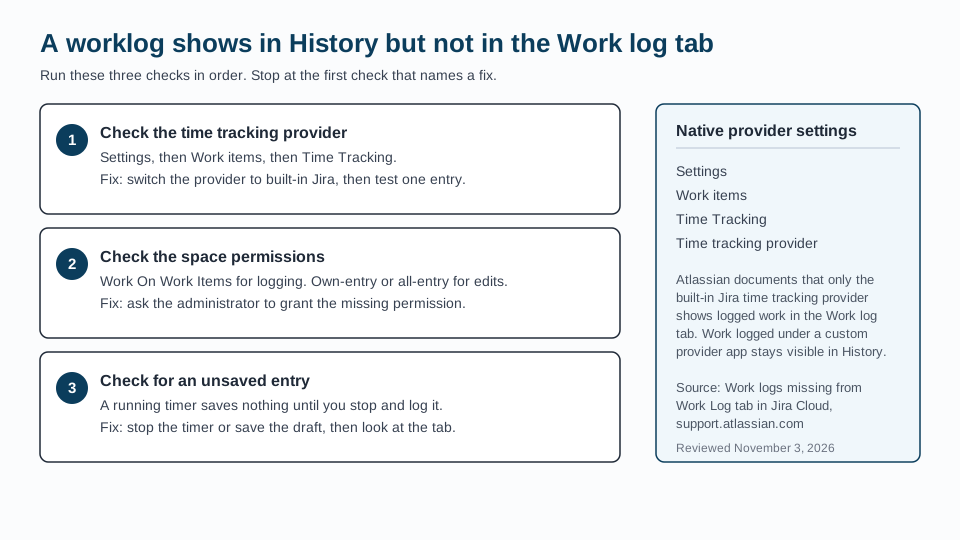
The first is a permission. Logging work needs the Work On Work Items permission in the space. Changes to saved entries need the own-entry or all-entry permissions (Time tracking permissions). A permission explains missing controls or blocked edits. It does not explain an entry that exists in History and cannot be seen in the tab.
The second is an entry that was never saved. A timer that keeps running saves nothing until you stop and log it. If you close the issue, a Daylight timer keeps running, and Stop & log saves the elapsed time (Log time in Daylight). Check for a running timer or an unsaved draft before you change site settings.
Where Daylight fits
Daylight writes native Jira worklogs under the account of the person who logs the time (Log time in Daylight). Entries logged through the Daylight panel or My Timesheet are ordinary worklogs in Jira's worklog system. When the built-in provider is active, they appear in the Work log tab and feed Daylight reports. If the app is later uninstalled, the entries remain.
The checklist
- Find the entry in the issue's History tab. Its presence confirms the record exists.
- Ask the administrator which app the Time tracking provider dropdown selects.
- If an app is the provider, switch to the built-in Jira time tracking provider.
- Log one test entry with the built-in provider active. Then look at the Work log tab.
- If the tab is still empty, check the Work On Work Items permission for the space.
- Check for a running timer or an unsaved draft before you change any setting.
Symptom checklist
This article uses Atlassian's published documentation and Daylight's help pages, reviewed on November 3, 2026. It does not report a live Jira test or a customer result.
Read the time-entry instructions to see the timer, quick log, and automatic suggestions in one place.