You can correct a submitted Jira timesheet while it is still pending. An approved period has no reopen action inside Daylight. You can still change its worklogs in Jira directly, and Daylight then flags the change with a changes after submit tag.
The timesheets help documents when you can edit a period. The reports and approvals help documents the outside-change tag and the audit log.
Match the path to the period's state
Each review period holds one state: Draft, Submitted, or Approved. Your submission moves the period to Submitted. An approval moves it to Approved. A withdrawal or a rejection returns it to the Draft state.
While the period is a draft. You are free to edit. Open My Timesheet, change the entry, and select Save. The change writes through to the Jira worklog.
While the period is pending. Select Unsubmit on the timesheet. The period returns to the draft. Edit the entries, then select Submit again.
If the approver rejected the period. The rejection already returns it to the draft. Skip Unsubmit. Edit the entries, then submit the period again.
After the period is approved. Daylight has no action to reopen it. To fix a worklog, edit it in Jira directly under Jira's permissions. The submission then shows a changes after submit tag, and the audit log lists the change.
The correction decision tree
The decision tree walks through every tested state. It starts at the draft and ends at the approved lock, with the exact button for each path.
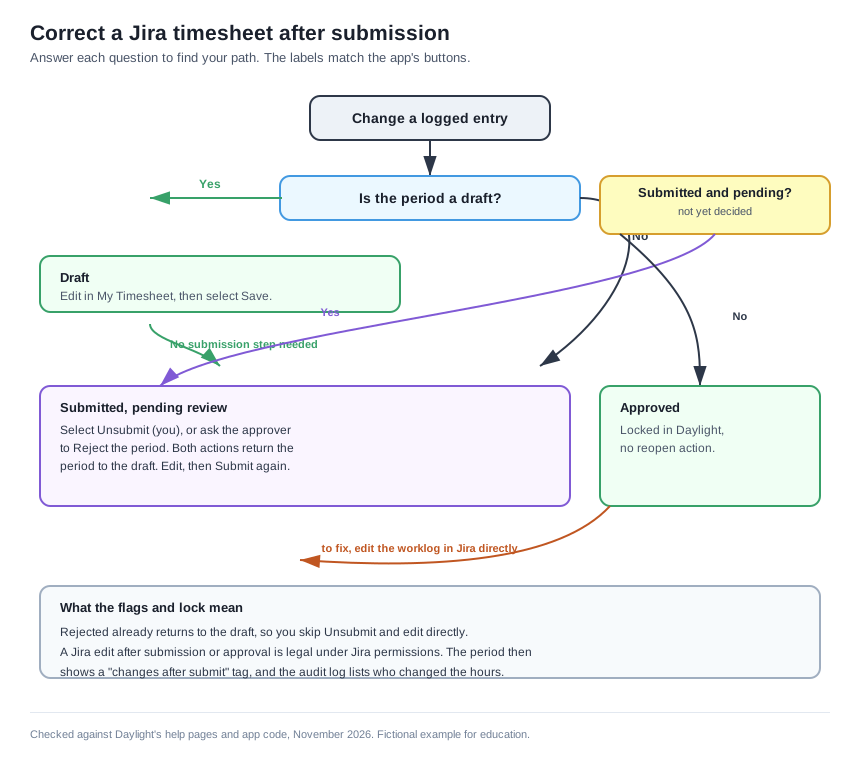
Each box names the state and the action that moves it forward. Each note states the source that documents the behavior.
Where the in-app lock stops
The lock covers submitted and approved periods inside Daylight. The entries stay as Jira worklogs, so a direct Jira edit follows Jira's own permissions. Other apps can also change those worklogs.
Daylight cannot stop an edit made in Jira after the submission or approval. It records the change in the audit log instead. The approver sees the changes after submit tag before signing off.
An admin can also set an edit window for older weeks. Weeks outside that window are read-only in Daylight, with or without a submission.
Where to go next
Read the approvals guide for the full review workflow. Check the state of your period before you change last month's hours.