Someone logged three hours against the wrong issue. Before you fix it, you need to know who may change it. Two Jira permissions decide who can edit. Two more decide who can delete. Daylight adds submission states on top.
Jira's four worklog permissions
Jira splits worklog control into four permissions in a space's permission scheme:
- Edit own worklogs — a person edits their own entries.
- Edit all worklogs — a person edits anyone's entries.
- Delete own worklogs — a person deletes their own entries.
- Delete all worklogs — a person deletes anyone's entries.
Atlassian documents all four permissions. An administrator grants each one to a user, a group, or a project role. Every user who logs time also needs the Work on work items permission. That permission lets a person log time in the first place.
Grant Edit own and Delete own to every person who logs time. Keep Edit all and Delete all for one or two named people who fix entries. Wide use of the "all" permissions makes an audit trail harder to read.
One more layer exists. A restricted worklog is visible only to the group or project role that the author selected (Jira Cloud REST API, issue worklogs). People without access cannot see that entry at all. Restriction affects who can review an entry, not only who can edit it.
What Daylight lets each role do
Daylight writes every change straight back to the Jira worklog. Jira permissions still govern who can change what. Daylight adds its own states:
- A team member edits and deletes their own entries in the timesheet grid (Edit and Submit Your Timesheet).
- After the person submits the week, the period is read-only inside Daylight. They can Unsubmit it while it is pending, or an approver can reject it.
- Once approved, the period stays locked. Daylight has no action to reopen an approved period.
- An admin can set an edit window for older weeks. Weeks outside that window are read-only too.
Approvers see the Approvals tab and team reports. They reject or approve a submission. They do not edit another person's entries in Daylight. The workflow sends the period back to the author instead.
What happens when someone edits outside Daylight
A person with Edit all in Jira can change a submitted entry directly in Jira. Daylight records that outside edit. A submission that someone changed after approval shows a changes after submit tag. Settings → Audit log lists each change, whether it happened in Daylight or in Jira (Daylight FAQ).
This matters for billing. The approver sees later edits. The approved total does not hide a change.
The permission matrix
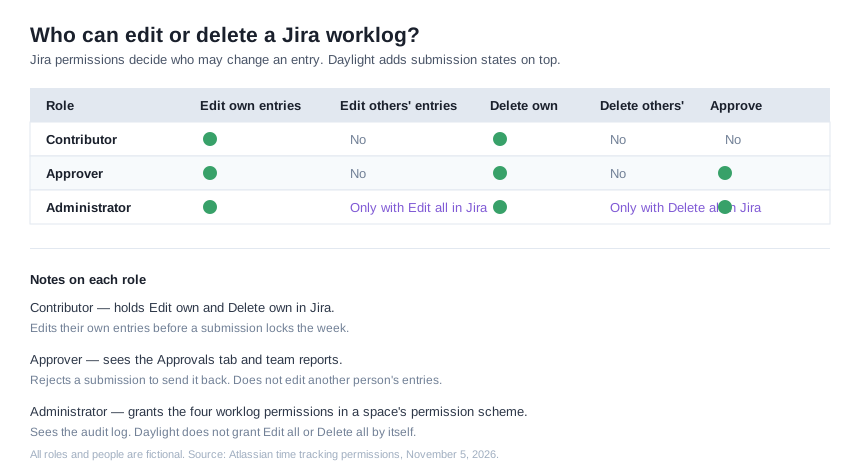
Download the permission matrix (SVG). The roles are fictional examples. The permissions match Jira's documented behavior.
The matrix answers three questions:
- Can the person fix their own entries? A contributor and an approver can, until a submission locks the week.
- Can the person fix another person's entries? Only a role with Edit all in Jira. Daylight does not grant it.
- Can the person approve? Only approvers and administrators.
Review checklist
- Check who holds Edit own and Delete own in each space's permission scheme.
- Keep Edit all and Delete all for one or two named people.
- Ask authors to fix their own entries before the week is submitted.
- After approval, route corrections through the author, not through a direct edit.
- Check the audit log when a total changes after an approval.
This article uses Atlassian's time tracking permissions documentation and Daylight's help pages, reviewed on November 5, 2026. The roles and examples are fictional. It does not report a customer result.
Read the Daylight FAQ for data storage, permissions, and current limits.