Jira records time against a work item through worklogs. You can compare the original estimate with logged time and the remaining estimate. A timesheet app adds a different place to enter and review those records across a week.
Choose the workflow from the report your team needs. Issue-level progress and approved client hours require different reviews.
Native Jira records estimates and worklogs
Atlassian uses “work item” in its current documentation. Your Jira interface can still show “issue.” Both terms refer to the work that holds the time entry.
The original estimate describes the expected effort. A worklog records time that a person spent on the work. The remaining estimate describes the work that remains. These values answer different questions.
For example, a developer estimates four hours for the fictional issue DEMO-42, “Correct the invoice export.” They record 90 minutes on Monday. The original estimate remains four hours. The developer sets the remaining estimate to two hours after reviewing the work.
The remaining estimate can change with new information. It does not need to equal the original estimate minus the logged time.
Atlassian documents the fields and entry workflow in Log time on a work item.
Record a time entry in Jira
- Open the work item.
- Select More actions.
- Select Log work.
- Enter the duration and the other required fields.
- Review the remaining estimate.
- Select Save.
If the time field is missing, contact your Jira administrator. Field visibility and permissions affect the available actions. Atlassian explains the administrator controls in Configure time tracking.
Use explicit units such as 1h 30m. Jira uses the configured default unit for a number without a unit. A note such as “Corrected the date filter in the invoice export” gives a reviewer more context than “Development.”
Follow the same issue through a weekly review
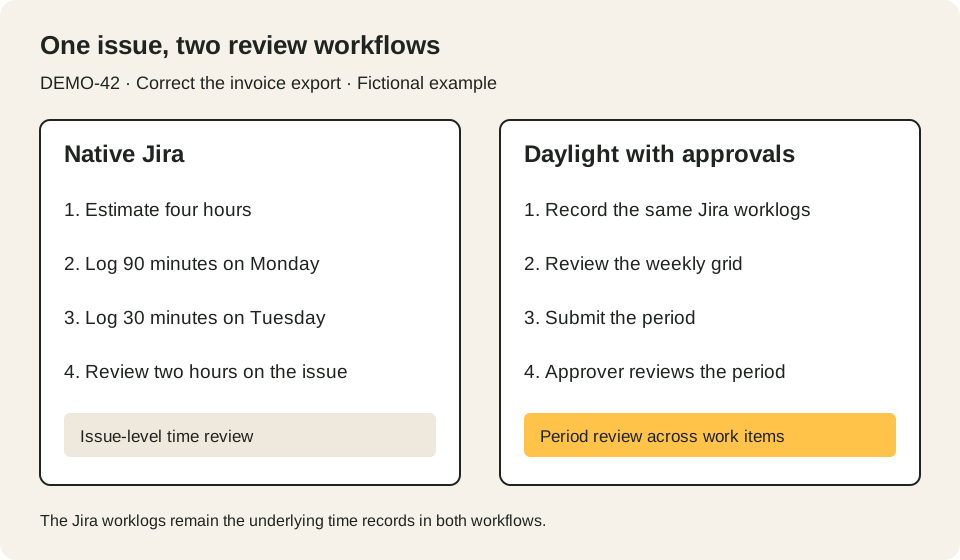
The diagram uses fictional work and durations. The Daylight branch shows a workflow with approvals enabled.
On Monday, the developer records 90 minutes on DEMO-42. On Tuesday, they record another 30 minutes. The total for the issue is two hours.
A project lead can review those entries on the issue. A team lead who reviews the entire week also needs to find gaps across other issues and days.
Daylight provides My Timesheet, a weekly grid for that review. A person can enter time in the grid or use a timer on the issue. Saved entries remain native Jira worklogs. The time entry instructions describe the available methods.
With Daylight approvals enabled, the person submits a weekly or monthly period. The assigned approver reviews that submission. Read the timesheet instructions for the submission steps.
Period locking applies within Daylight. Jira worklog permissions still govern actions outside Daylight. A submission does not establish that the hours are billable under a client contract.
Choose the workflow for your report
For an issue progress report, start with Jira estimates and worklogs. The reviewer needs to see time spent and the remaining work.
For a weekly team review, examine the timesheet view. The reviewer needs to identify missing days and entries across several issues.
For client billing, define the billing period and the rules for billable work. Then compare a worklog-level export with the source entries. The sample report provides fictional rows for that comparison.
For period approval, assign a reviewer and agree on the correction process. Jira work item approval steps and a timesheet approval period serve different purposes. Daylight's approval guide describes its period workflow.
The example describes the documented product behavior reviewed on October 22, 2026. It does not report a customer result or a live Jira trial.
See Daylight for Jira to compare this workflow with your team’s reporting needs.