Choose the cadence that matches how your approver reviews and when your billing cuts off. Weekly submission creates small reviews with a fast correction window. Monthly submission creates one review for the whole month and one cutoff to plan. Daylight lets the admin set Weekly or Monthly under Submission cadence, and the editing grid stays weekly in either case.
The timesheets help says this. The reports and approvals help documents how the admin sets the cadence in Settings → Features.
The grid is weekly no matter which cadence you choose
The grid and the submission period are different units. The grid is the editor, and the submission period is the review unit.
Your people open My Timesheet and see one week at a time, with daily and weekly totals. They edit any cell in that week. The submission cadence decides only how often the whole period is submitted. Your organization chooses weekly or monthly submissions, and the grid stays weekly either way.
What weekly cadence changes
Under Weekly, each Monday-to-Sunday week becomes its own submission period. From the last working day of the week, the submit bar tells the person if they logged fewer hours than expected. You can still submit.
The approver receives a small review every week. A mistake surfaces in the same week it happened, while the entry is still fresh. A rejected or withdrawn week returns to the draft state, so the edit window is short and local.
The trade is review effort for the approver. A team of ten produces ten reviews each week.
What monthly cadence changes
Under Monthly, the whole calendar month becomes one submission period. Your people edit weekly grids week by week. At month end, each person submits the month once.
The approver reviews once per person per month. The Team tab shows monthly totals for This month or Last month, and the coverage card names people who have not submitted. Submitted mode includes pending and approved periods.
The cost is a longer review at month end. A person who needs a fix must wait for the approver to reject the month, or withdraw it with Unsubmit, before they can edit.
Where the lock sits
Submitted and approved periods are read-only inside Daylight. Approved periods stay locked, and Daylight currently has no action to reopen one. The lock is inside Daylight only. Direct Jira edits follow Jira permissions, and Daylight flags a change with a changes after submit tag.
Pick the cadence where your people can close their entries in time. The correction window matters more than the number of events.
Two fictional calendars for the decision
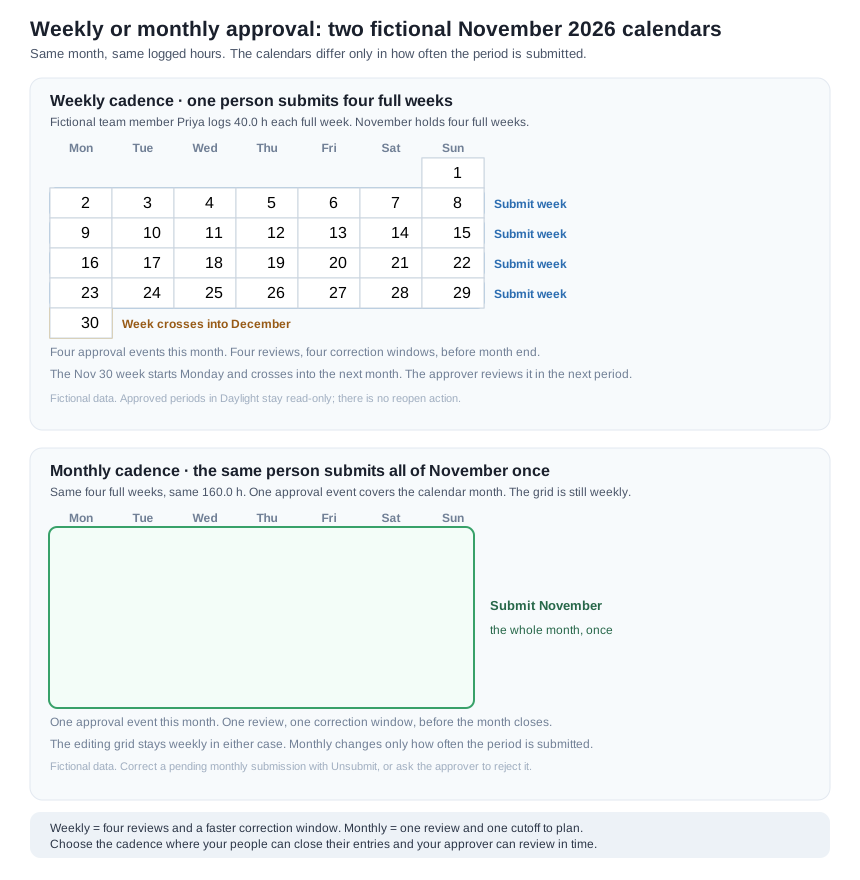
The calendars in the asset show one fictional person, Priya Nair, in November 2026. She logs 40.0 hours in each of four full weeks. The name, the hours, and the month are all fictional.
Under Weekly, she submits Nov 2-8, 9-15, 16-22, and 23-29 as four separate weeks. The Nov 30 week starts Monday and crosses into December, so the approver reviews it in the next period.
Under Monthly, she submits all of November once, 160.0 hours. Every day in November belongs to that one period.
View the two fictional November calendars.
Use the decision worksheet
Put your own answers in the worksheet. It lists the review effort, correction timing, billing cutoff, and cross-month behavior for each cadence. Adjust the numbers. Then check that the totals still add up.
Download the decision worksheet.
Where to go next
Read the approvals guide for reviewer assignments, the correction paths, and the limits of the in-app lock. Before you change the whole organization, try one cadence with one team and one month.