Yes, a Jira worklog can change after the timesheet is approved. The approval lock applies only inside Daylight. A person with the right Jira permission can edit the worklog directly in Jira, and another app can change it too. Daylight does not stop that edit. It records the change and shows it to the approver.
The timesheets help and the reports and approvals help document this boundary. The lock holds inside Daylight. The worklog itself stays in Jira.
The lock stops at the app
An approved period is read-only in Daylight. The app has no action to reopen an approved period. You cannot open the approved worklog in the grid and edit it. You must make the change outside Daylight.
The reports and approvals help states that this lock applies within Daylight. Direct Jira edits and other apps follow their own permissions. Your Jira admin can set those permissions to match your review process.
Jira still lets some people edit
Underneath, each entry is a real Jira worklog. Jira's own time tracking permissions decide who can edit or delete it. The rule still applies after the timesheet is approved.
Jira lets a person with Edit all worklogs change anyone's entry. A person with Edit own worklogs can change their own entry. The Delete all worklogs and Delete own worklogs permissions control removal the same way.
A person who holds one of these permissions can change an approved entry directly in Jira. Daylight cannot block the change. The permission guide explains who usually holds each one.
How a change appears in review
A change after approval does not stay hidden. The submission shows a changes after submit tag, and the approver sees it before signing off. The example below shows an approved entry before and after a direct Jira edit.
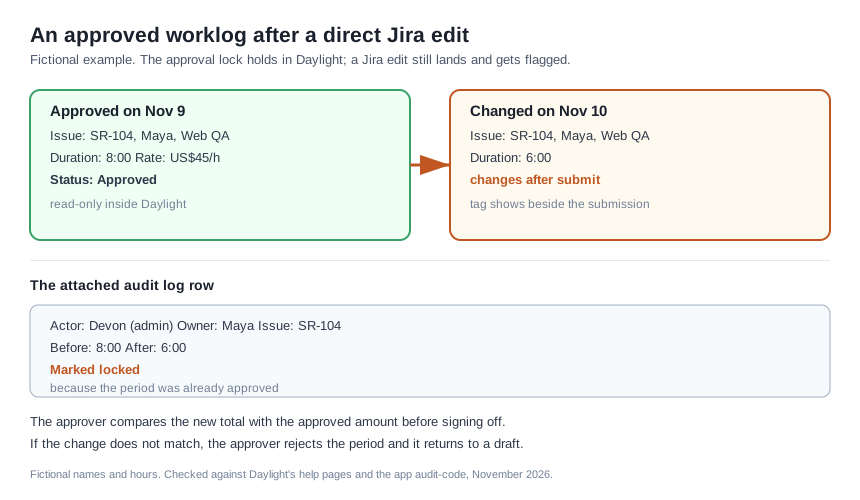
The audit log lists each change, in Daylight or in Jira. Each row shows who made the change, whose time it is, and the hours before and after. A change to a submitted or approved period is marked locked. The reports and approvals help describes the log and its filters.
The approved amount remains visible too. The approver can compare the new total with the amount approved. That protects the billing total from a quiet edit.
Review an approved period that changed
- Open the Approvals tab and find the period with the changes after submit tag.
- Compare each changed entry with the approved total.
- Ask the editor why the hours changed.
- If the change is correct, approve the period. If the hours are wrong, reject the period to return it for corrections.
An approved period has no reopen action, but the rejection path still exists. Reject the period and it returns to the author as a draft. The author then edits the entries and submits again. The correction guide shows the exact path for each state.
Where to go next
Read the approvals guide for the full review workflow. Check the audit log whenever a total changes after an approval.